

Creating a Project Standards Check component
Project Standards Checks are plugin components that allow you to perform custom quality checks from the Project Standards tab. These checks verify that a project meets specified criteria before deployment and during operation. Use this component when you need custom checks beyond those provided by Dataiku.
This tutorial demonstrates how to create a custom check, using an example that counts objects within a flow zone.
Prerequisite
Dataiku >= 14.2
Develop plugin permission
Python >= 3.9
Introduction
To develop a Project Standard Check (abbreviated by Check in this tutorial), you must first create a plugin (or use an existing one). Go to the main menu, click the Plugins menu, and select Write your own from the Add plugin button. Then choose a meaningful name. Once the plugin is created, click the Create a code environment button and select Python as the default language. Once you have saved the modification, go to the Summary tab to build the plugin code environment. The check will use this code environment when it is used.
Click the + New component button, and choose the Project Standards Check Spec component in the provided list, as show in Fig. 1. Then, complete the form by choosing a meaningful Identifier and clicking the Add button.

Figure 1: New Project Standards Check Spec component.
Alternatively, you can select the Edit tab and, under the plugin directory,
create a folder named python-project-standards-check-specs.
This directory is where you will find and create your custom check.
Under this directory, create a directory with a meaningful name representing your Project Standards Check component.
Creating the Project Standards Check
A Check is created by creating two files: project_standards_check_spec.json and project_standards_check_spec.py.
The JSON file contains the configuration file, and the Python file is where you will code the behavior of your Check.
Configuring the Check
Code 1 displays the global structure of the configuration file; the highlighted lines are specific to the check component. In this tutorial, you will create a simple Check that checks if there are no empty flow zones (or if a flow zone contains enough objects) and if a flow zone does not contain too many objects.
So you just need to define two parameters:
min_objects_by_zone: to define the minimum number of objects a flow zone should contain.max_objects_by_zone: to define the maximum number of objects a flow zone should contain.
/* This file is the descriptor for the Custom python Project Standards Check spec flow-zone-check */
{
  "meta": {
    "label": "Flow zone size",
    "description": "A tutorial on how to create a project standard",
    "icon": "fas fa-code"
  },
  /* optional list of tags.
  */
  "tags": [],
  /* params:
  DSS will generate a formular from this list of requested parameters.
  Your component code can then access the value provided by users using the "name" field of each parameter.

  Available parameter types include:
  STRING, INT, DOUBLE, BOOLEAN, DATE, SELECT, TEXTAREA, PRESET and others.

  For the full list and for more details, see the documentation: https://doc.dataiku.com/dss/latest/plugins/reference/params.html
  */
  "params": [
    {
      "name": "min_objects_by_zone",
      "label": "Minimum number of objects in a flow zone.",
      "type": "INT",
      "defaultValue": 1,
      "mandatory": true
    },
    {
      "name": "max_objects_by_zone",
      "label": "Maximum number of objects in a flow zone",
      "type": "INT",
      "defaultValue": 10,
      "mandatory": true
    }
  ]
}
Coding the Check
To code a Check, you must create a class derived from the ProjectStandardsCheckSpec class.
In this new class, the only mandatory function is the run function.
This is where you will code your Check.
You can access the component configuration by using the config object.
For example, if you need to retrieve the Minimum number of objects in a flow zone previously configured,
you should use: self.config.get('min_objects_by_zone').
The run function should return one of the following:
success(message): when the Check succeeded.failure(severity, message): if you consider the Check is failing. You can use severity from 0 to 5If you use severity 0, it will be considered a success. In that case, you should use the success method.
1 is the weakest failure and 5 is for a critical failure. Numbers in between are gradually increasing.
not_applicable(message): if the check is not applicable to the project.error(message): if you want to mark the check as an error. You can also raise an Exception.
With an understanding of these situations, proceed to code the check, as shown in Code 2.
    def run(self):
        project = self.project
        min_objects = self.config.get('min_objects_by_zone')
        max_objects = self.config.get('max_objects_by_zone')
        flow = project.get_flow()
        zones = flow.list_zones()
        counts = [(zone.name, len(zone.items)) for zone in zones]
        under = [count for count in counts if count[1] < min_objects]
        over = [count for count in counts if count[1] > max_objects]
        if not (under) and not (over):
            return ProjectStandardsCheckRunResult.success("Everything is Ok.")
        else:
            return ProjectStandardsCheckRunResult.failure(3,
                                                          f"{len(under) + len(over)} flow zones do not match the criteria defined in the Project Standards Check.")
Using the Project Standards Check
Once you have coded your Check, you need to declare it in the Project Standards > Check library, then add it to a Scope, as mentioned in the official documentation
To add your Check to the Project standards > Check library, go to the Main menu, select the Administration option, and then select the Project standards tab. Click the + Add checks, fill the form by selecting your plugin as a source, and your Check as a Checks, as shown in Fig. 2.
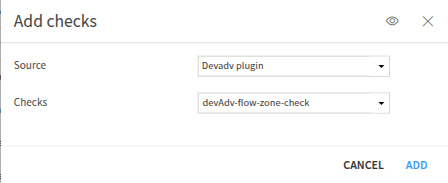
Figure 2 – Adding a Check to Project Standards.
Once you have added your Check, you need to add it to a scope (or create a new one if you don’t have one). Select the Scopes tab on the left panel, click the + Add scope, fill the form, and the click the Save button. Fig. 3 shows the result of adding a new scope to a project.
If your project does not belong to a scope, you won’t be able to run a Project Standards action.
There are three different ways of selecting a project:
By using the project key, you will then select all projects on which you want to apply the scope.
By using a folder, all projects within it will inherit the scope.
By using the tag selector, all projects that are tagged by one of the tags you have selected will inherit the scope.

Figure 3 – Defining a new scope.
Now that you have defined the scope of the Check, you can test it in the project. Select the project that the Check is associated with, go to the Flow, select the Projects Standards action, and click the Run button. This will generate a report for your project, based on your Check (and all other checks associated with your project).
Note
The Projects Standards action will not be available if you have selected something in the Flow.
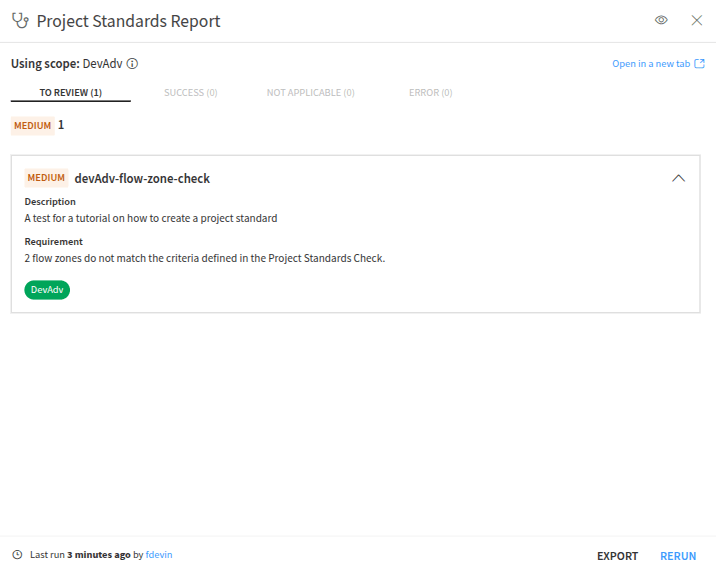
Figure 4: Running a check.
Conclusion
You have now learned the essentials of creating a Project Standards Check and can define verification requirements for your project.
Here is the complete code of the Project Standards Check component:
project-standards-check.json
/* This file is the descriptor for the Custom python Project Standards Check spec flow-zone-check */
{
  "meta": {
    "label": "Flow zone size",
    "description": "A tutorial on how to create a project standard",
    "icon": "fas fa-code"
  },
  /* optional list of tags.
  */
  "tags": [],
  /* params:
  DSS will generate a formular from this list of requested parameters.
  Your component code can then access the value provided by users using the "name" field of each parameter.

  Available parameter types include:
  STRING, INT, DOUBLE, BOOLEAN, DATE, SELECT, TEXTAREA, PRESET and others.

  For the full list and for more details, see the documentation: https://doc.dataiku.com/dss/latest/plugins/reference/params.html
  */
  "params": [
    {
      "name": "min_objects_by_zone",
      "label": "Minimum number of objects in a flow zone.",
      "type": "INT",
      "defaultValue": 1,
      "mandatory": true
    },
    {
      "name": "max_objects_by_zone",
      "label": "Maximum number of objects in a flow zone",
      "type": "INT",
      "defaultValue": 10,
      "mandatory": true
    }
  ]
}
project-standards-check.py
from dataiku.project_standards import (
    ProjectStandardsCheckRunResult,
    ProjectStandardsCheckSpec,
)


class MyProjectStandardsCheckSpec(ProjectStandardsCheckSpec):

    def run(self):
        project = self.project
        min_objects = self.config.get('min_objects_by_zone')
        max_objects = self.config.get('max_objects_by_zone')
        flow = project.get_flow()
        zones = flow.list_zones()
        counts = [(zone.name, len(zone.items)) for zone in zones]
        under = [count for count in counts if count[1] < min_objects]
        over = [count for count in counts if count[1] > max_objects]
        if not (under) and not (over):
            return ProjectStandardsCheckRunResult.success("Everything is Ok.")
        else:
            return ProjectStandardsCheckRunResult.failure(3,
                                                          f"{len(under) + len(over)} flow zones do not match the criteria defined in the Project Standards Check.")
Reference documentation
Classes
|
A handle to interact with a project on the DSS instance. |
|
A check for Project Standards |
|
The result of the check run |
Functions
|
|
Lists all zones in the Flow. |