

Creating a parameter set component
This tutorial explains how to create a plugin parameter set component in Dataiku.
A parameter set component is useful when plugin components need to share preset parameters.
This is especially relevant for confidential values such as API tokens,
because a parameter set can define CREDENTIAL_REQUEST fields for per-user credentials.
In this tutorial, you will create a parameter set named Shortcut API Token. This parameter set will store a Shortcut API token securely. This component is used in the Creating a structured agent block component tutorial.
Prerequisites
Dataiku >= 14.4.3
Develop plugins permission
Introduction
Some plugin components require configuration values that should not be hardcoded in the source code.
When these settings must be shared across components, Dataiku recommends using presets backed by Parameter sets.
This is especially useful for credentials such as API keys or tokens,
because CREDENTIAL_REQUEST parameters let each user provide their own credential value.
To create a parameter set, you must first create a plugin or reuse an existing one.
Go to the main menu, click the Plugins menu, and select Write your own from the Add plugin button.
Then choose a meaningful name, such as shortcut-management.
Click the + New component button then choose the Parameter set component from the provided list, as shown below.
Then, complete the form by choosing a meaningful identifier, such as shortcut-token, and clicking the Add button.

Fig. 1: New parameter set component.
Alternatively, you can select the Edit tab and, under the plugin directory, create a folder named parameter-sets.
This directory is where you will find and create your parameter sets.
Under this directory, create a directory with a meaningful name representing your parameter set,
such as shortcut-token.
Creating the parameter set
A parameter set is defined in a single file: parameter-set.json.
This file defines the parameter set metadata and the values that users will be asked to provide.
Configuring the parameter set
Code 1 shows the descriptor used in this tutorial.
This configuration declares:
The parameter set label, description, and icon
a single field named
shortcut_api_tokena
CREDENTIAL_REQUESTparameter so the token is handled as a credential rather than as plain text.
parameter-set.json¶/* This file is the descriptor for the parameter set shortcut-token */
{
"meta" : {
"label": "Shortcut API Token",
"description": "The API token for accessing Shortcut",
"icon": "fas fa-puzzle-piece"
},
"params": [
{
"name": "shortcut_api_token",
"label": "Shortcut token",
"type": "CREDENTIAL_REQUEST",
"credentialRequestSettings": {
"type": "SINGLE_FIELD"
},
"description": "Please enter a valid API token for accessing the Shortcut REST API",
"mandatory": true
}
]
}
The important point in this tutorial is the parameter name shortcut_api_token.
Other components that need to retrieve this parameter set will use this name to read the user-entered value.
Using the parameter set
Once the parameter set has been created, you need to create a preset for it.
Go to the plugin Settings tab, select your parameter set on the left panel, and clicking the Add preset button.
Choose a meaningful name, for example, shortcut, as shown below.
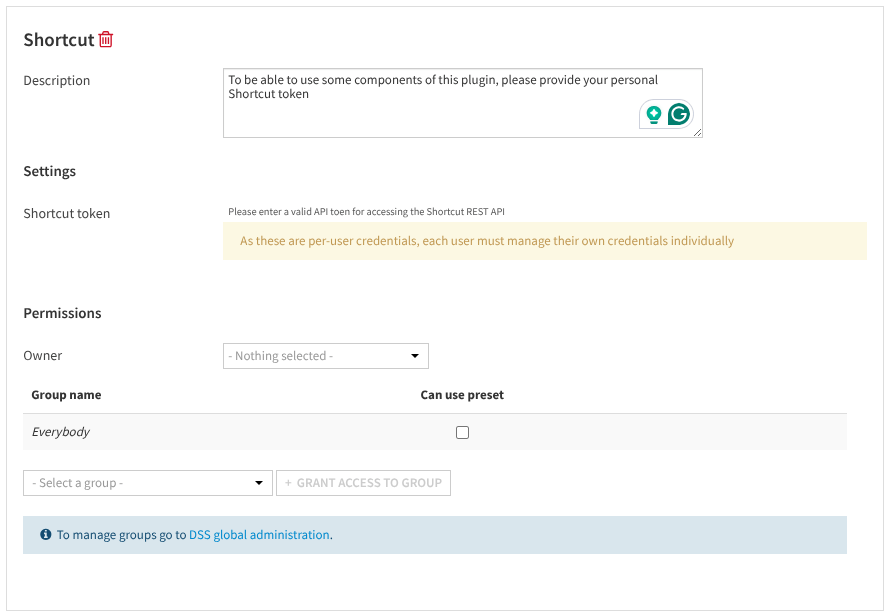
Fig. 1: New preset for a parameter set.
After the preset has been created, users can provide their own credential value. Read this documentation for more information on entering personal credentials. This is the value that will later be used by plugin components referencing this preset.
This design has two practical benefits in this example:
The Shortcut token is not stored directly in the block code.
The same parameter set can be reused by several plugin components if needed.
When to use a parameter set
This pattern is useful whenever several plugin components need shared preset parameters or when you want users to provide their own secret values securely.
In the Shortcut example, a parameter set is a better fit than a plain STRING field in block.json
because the block needs an API token which should be managed as a credential.
Conclusion
You have now learned how to create a plugin parameter set in Dataiku.
This component is especially useful for shared preset parameters,
and in particular for credentials handled through CREDENTIAL_REQUEST fields.
Here is the complete code of this tutorial:
parameter-set.json
/* This file is the descriptor for the parameter set shortcut-token */
{
    "meta" : {
        "label": "Shortcut API Token",
        "description": "The API token for accessing Shortcut",
        "icon": "fas fa-puzzle-piece"
    },
    "params": [
        {
            "name": "shortcut_api_token",
            "label": "Shortcut token",
            "type": "CREDENTIAL_REQUEST",
            "credentialRequestSettings": {
                "type": "SINGLE_FIELD"
            },
            "description": "Please enter a valid API token for accessing the Shortcut REST API",
            "mandatory": true
        }
    ]
}